HeatSuite Watch App - Ecological Momentary Assessments
What are Ecological Momentary Assessments (aka EMA)?
Ecological Momentary Assessment (EMA) is a research method that involves collecting data about an individuals' behaviors, experiences, emotions, or physiological states in real time and in their natural environments. This method enables the collection of "right here, right now" data whereby users respond to questions directly on the watch.
What questions can I ask?
Short answer, anything! As HeatSuite was designed to be a researcher first tool, it does not come with pre-defined questions. You are in full control of what questions you want to ask, and their design - within the limits of the software. In brief, the best questions are short with simple responses (one/two words per option).
How do I add EMA questions?
Adding EMA to the watch app requires you to simply upload a properly formatted heatsuite.survey.json file to the watch. This is done during the HeatSuite app installation on the Bangle.js2. If you want to add in additional programmatic "nudging", you will need to include the survey task in your heatsuite.tasks.json file (how do I do that?).
Formatting heatsuite.survey.json
Below is an example of a heatsuite.survey.json file with one question, with two available languages that you can use to build your EMA questions from:
{
"supported":{
    "en_GB":"English (GB)",
    "fr_CA":"Francais (CA)"
    },
"settings":{

}
"questions":[{
    "key":"comfort",
    "followup": false,
    "text": {
        "en_GB":"Thermal comfort?",
        "fr_CA":"Confort thermique?"
        },
    "tod":[[0,2359]],
    "oncePerDay": true,
    "orderFix":false,
    "options": {
        "type" : "scroll",
        "responses": [{
                "text":{
                    "en_GB":"Comfortable",
                    "fr_CA":"Confortable"
                    },
                "value":0,
                "color":"#ffffff",
                "btnColor":"#38ed35"
                },{
                "text":{
                    "en_GB":"Uncomfortable",
                    "fr_CA": "Inconfortable"
                    },
                "value":1,
                "color":"#ffffff",
                "btnColor":"#ff0019",
                "next": "uc_reason"
                }]
        }
    }]
}
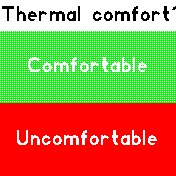
Lets break it down.
Supported Languages
supported is object {} which contains all supported languages for your EMA. You must include all supported languages here as key:value with the key being the identifier (e.g. en_GB) and the value being the descriptor (e.g. English (GB)). The user will be able to select their prefered language within Settings->Apps->HeatSuite. HeatSuite recommends following the language convention used within BangleApps locales.js.
As of v0.12, non-latin font types are supported through the fontall application which broadly includes Simplified Chinese, Japanese, Russian, Korean, etc. To include these, you must include your desired supported language as follows:
fontall app is only made a dependency during installation of the HeatSuite app when it detects an *_INTL language included within the supported object.
Questions
questions will contain an array [] of objects {}. Within each object is the details and settings of your question. Below is what a question object would look like:
{
    "key":"comfort",
    "followup": false,
    "text": {
        "en_GB":"Thermal comfort?",
        "fr_CA":"Confort thermique?"
        },
    "tod":[[0,2359]],
    "oncePerDay": true,
    "orderFix":false,
    "options": {
        "type" : "scroll",
        "responses": [{
                "text":{
                    "en_GB":"Comfortable",
                    "fr_CA":"Confortable"
                    },
                "value":0,
                "color":"#ffffff",
                "btnColor":"#38ed35"
                },{
                "text":{
                    "en_GB":"Uncomfortable",
                    "fr_CA": "Inconfortable"
                    },
                "value":1,
                "color":"#ffffff",
                "btnColor":"#ff0019",
                "next": "uc_reason"
                }]
        }
}
key: The definition/classification you want to give this questionfollowup(optional, default is false): This labels a question as a follow up question. You can use this to create questions that are asked only when a given response is received.text: an object{}containing the question/prompt with keys corresponding to all supported languages and values containing the text to be presented.tod(optional): an array[]of arrays[]containing possible restrictions of the question depending on time of day (in 24h clock). Within this example, The question may be presented at any time of day ([0,2359]). However, if you want to restrict the question to only be visible in the morning, you would adjust to[0,1159]. If you only want questions to be restricted to specific times of day, you can add multiple time windows in the array like this:"tod":[[0,1159],[1400,1800]]. In this example, you will only see the question between 00:00 & 11:59, or 14:00 & 18:00.oncePerDay(optional): a boolean value (trueorfalse) to restrict the question to only appear once a day.orderFix(optional): a boolean value (trueorfalse) to fix the order of this question if you have selected question randomization in HeatSuite settings.
Formatting your options object for different response types
With HeatSuite watch app v0.12 and above, you now have the option to chose between scrolling through responses or a numerical based response. Each uses the same options object {}, but with different settings. See below:
options: an object{}containing the following keys:type: A string defining the type of response style to generate (numberorscroll)startOpt(required fornumbertype): The value you want presented first.min(required fornumbertype): The smallest value that can be selected.max(required fornumbertype): The highest value that can be selected.optStep(required fornumbertype): The step between values (e.g. 1 unit increments would be 1).units(optional): To append to the visible response.next(optional, ignored if responses is used): An object{}containing the specific response id askeys, where theirvalueis the the key of the follow up question.responses(required forscrolltype): An array[]of objects{}containing details for each option to present for the user to select. Within each object, you have the following options:text: object{}containing your language specific (key) option text (value).value: (integer) the value associated with response coding.color: The color of the option text.btnColor: The color of the option background.next(optional): the uniquekeyof the follow up question. When this option is pressed, this will present the user the defined follow up question. **
**Notes on next option: This allows for more detailed responses and feedback. You can even iterate this 'next' feature to keep asking the same question over and over, or nest multiple follow up questions depending on response.
Settings
settings is an optional object which can contain a host of global options that you can set to change the UI of the questions. Here are the current options that you can change:
questionFont(optional, default is"18%"): The font size used for question text when using standard/non-international fonts.intlQuestionFont(optional, default is"Intl:1"): The font used for question text when using international fonts such as those required for Chinese characters.questionPad(optional, default is2): The padding around question text.nextButtonFont(optional, default is"15%"): The font size used for the next button.nextButtonLabel(optional, default is">>"): The text shown on the next button.nextButtonColor(optional, default is"#0f0"): The background color of the next button.responseHeaderHeight(optional, default is30): The height, in pixels, reserved for the question text shown above the response options.responseFontSize(optional, default is24): The font size used for response option text when using standard/non-international fonts.responseMinFontSize(optional, default is14): The smallest font size allowed when automatically shrinking standard response text to fit the screen.intlResponseFontSize(optional, default is2): The font size used for response option text when using international fonts.intlResponseMinFontSize(optional, default is1): The smallest international font size allowed when automatically shrinking response text to fit the screen.responseHeight(optional, default is30): The default height, in pixels, used for each response option row.autoFitResponseHeight(optional, default istrue): A boolean value (trueorfalse) that allows response rows to automatically expand when there are fewer than five response options. This is skipped whenwrapResponseTextis enabled.fitResponseText(optional, default istrue): A boolean value (trueorfalse) that allows response text to automatically shrink when it is too wide for the screen andwrapResponseTextis not enabled.wrapResponseText(optional, default istrue): A boolean value (trueorfalse) that allows long response option text to wrap across multiple lines.responsePad(optional, default is4): The padding, in pixels, inside each response option row.responseLineSpacing(optional, default is2): The spacing, in pixels, between wrapped response text lines.responseMinHeight(optional, default is30): The minimum height, in pixels, allowed for a response option row when wrapped response text is enabled.responseMaxHeight(optional, default is96): The maximum height, in pixels, allowed for a response option row when wrapped response text is enabled.responseMaxLines(optional, default is3): The maximum number of wrapped text lines shown for a response option.responseTextColor(optional, default is"#000"): The default text color used for response options when a response does not define its owncolor.responsePalette(optional): An array[]of colors used as default response option background colors when individual responses do not definebtnColor. Colors are assigned in order and repeat if there are more response options than colors.responsePaletteIndex(optional, default is0): The starting index forresponsePalette. This lets you shift which color is used for the first response option.